Menu
Categories

Curated Tech for the Modern Professional.

Curated Tech for the Modern Professional.

Wishlist
Shopping Cart

No products in the cart.

Category: Remote Work Gear

Used before category names. Productivity Accessories Remote Work Gear

Mechanical Keyboard Switches Explained for Office Use

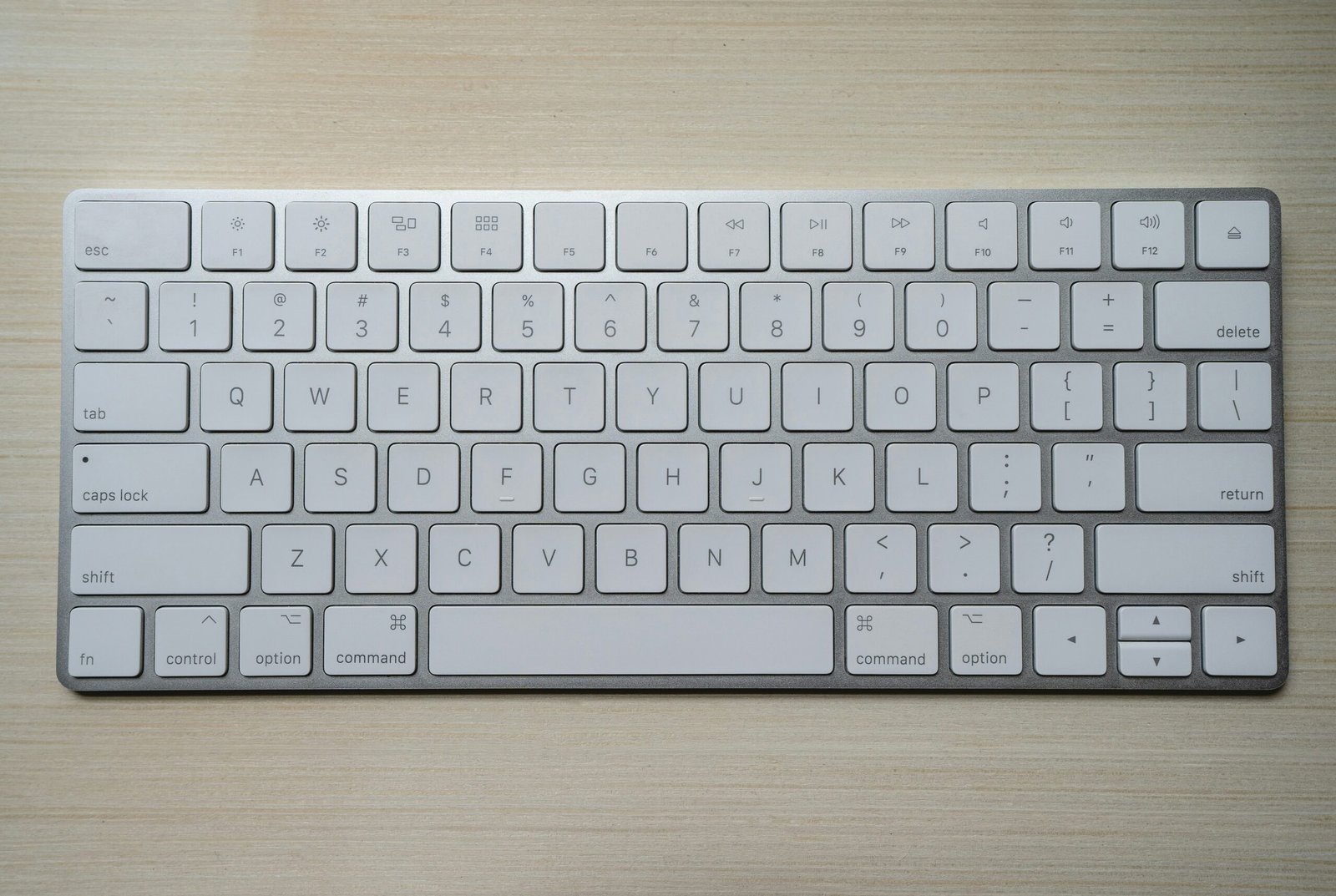
If you spend hours typing, a mechanical keyboard can make a real difference to comfort and accuracy. The first decision is the switch type, and it affects feel and noise more than anything else. The three main switch types Linear. Smooth keystroke with no bump or click. Where it shines: quiet, fast, and easy for long typing sessions. Where it falls short: some typists miss the feedback and make more accidental key presses. Tactile. A small bump signals when the key registers. Where it shines: good feedback without much noise, so it suits most office work. Where it falls short: the bump isn’t to everyone’s liking. Clicky. A bump plus an audible click. Where it shines: very satisfying feedback. Where it falls short: loud, and likely to be heard on video calls or by people nearby. Other features to check Size. Full-size boards include a number pad. Tenkeyless (TKL) and 75% layouts save desk space and keep your mouse closer, which helps your shoulder. 60% boards are compact but remove arrow and function keys many office users need. Hot-swappable switches. These let you change switches without soldering, so you can try other types later. Noise dampening. Foam inside the case and softer switches reduce sound. This matters if you share a room. Connection. Wired is reliable and has no battery. Wireless is neater, but check battery life and whether it supports multiple devices. Keycap material. Thicker keycaps tend to feel more solid and sound deeper. Which one should you choose? Quiet home office or shared space: linear or quiet tactile, with a 75% or TKL layout Heavy daily typing: tactile, for feedback that helps accuracy Gaming and work on one board: linear, wired or low-latency wireless Working near others or on frequent calls: avoid clicky switches Try to type on a board before buying, or choose a retailer with an easy return policy. Switch feel is personal.

Continue Reading...
Oct 22, 2026
Used before category names. Remote Work Gear Travel Tech

The Travel Tech Kit for Remote Workers

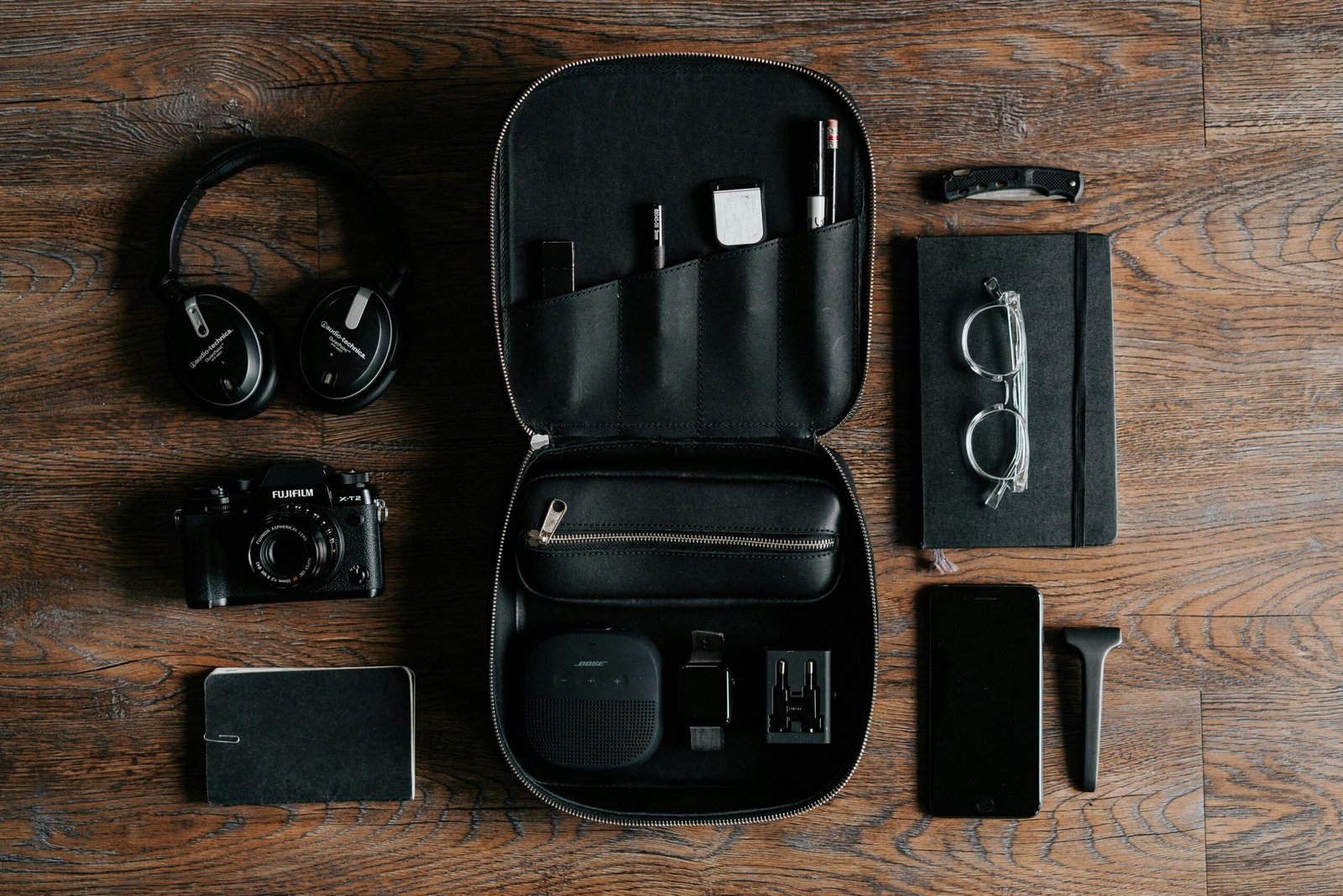
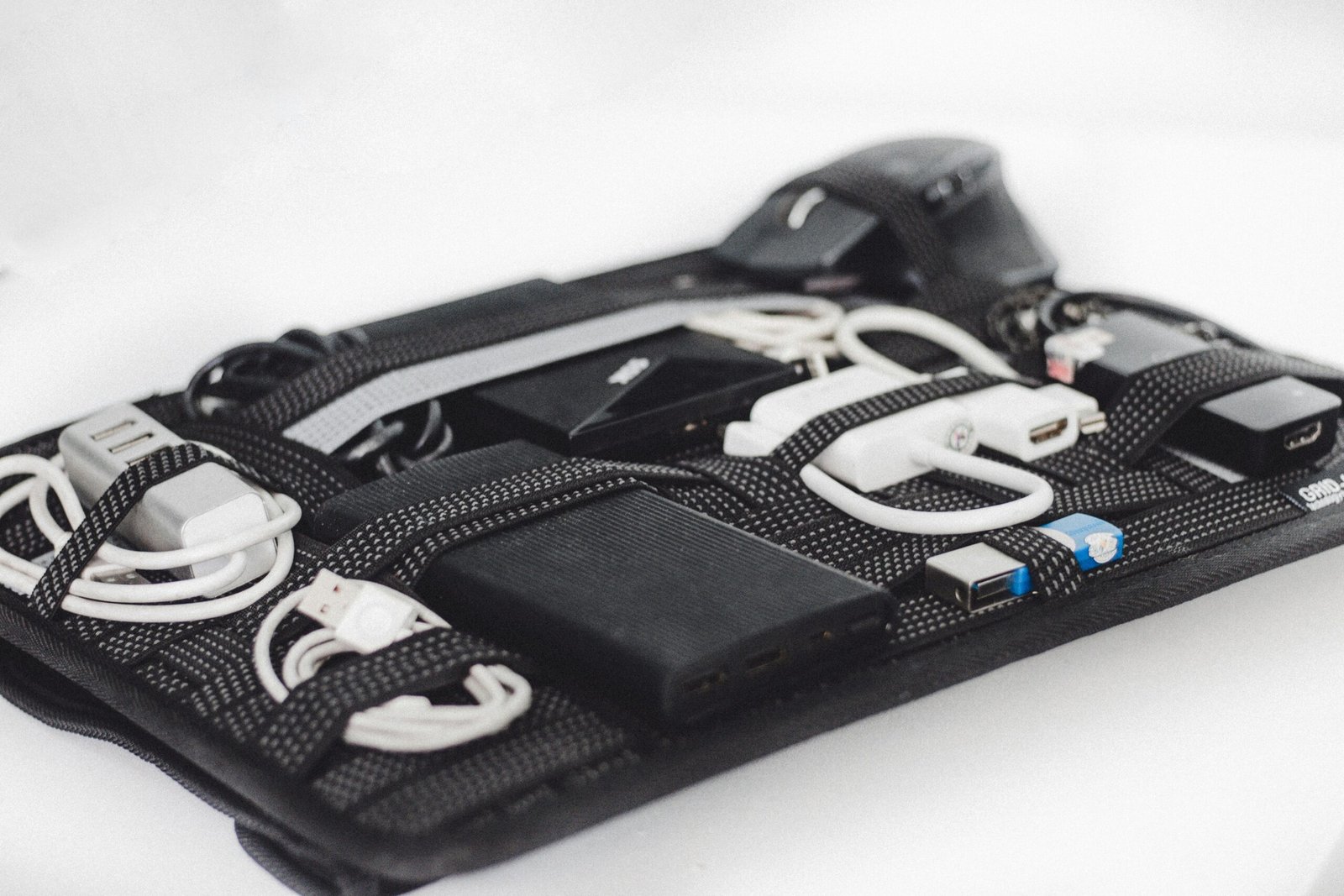
Working while you travel goes better with a small, well-chosen kit than with a bag full of loose cables. The aim is simple: carry enough to work for a full day away from your desk, charge everything you own, and keep the weight down. This guide shows how to build that kit, what to look for in each item, and a checklist to run through before you leave. Start with two rules Rule 1: Standardize your charging. If your laptop, phone, headphones, and power bank all charge over USB-C, you can carry one charger and a couple of cables instead of five different ones. Before a trip, replace any device that uses an odd connector, or pack its cable separately. Rule 2: Pack for failure. Cables fray, chargers get left in hotel rooms, and batteries run flat. Carry one spare of the item that would stop you from working if it failed. For most people that is a USB-C cable. The core kit A compact multi-port charger. A single charger with a USB-C port, and ideally a second port for your phone, can replace several bricks. The key check is wattage. Look at the label on your laptop’s current charger, which shows its output in watts, and choose a travel charger that matches or exceeds it. A weaker charger may charge slowly, or not at all while you are working. Chargers that use gallium nitride (GaN) technology are often smaller than older designs at the same wattage, which helps when space is tight. A power bank. Choose one that supports USB-C power delivery if you want to charge a laptop from it, not just a phone. Check the maximum output in watts, because a power bank that gives 18 W will not keep a laptop that needs 65 W alive. Capacity is listed in mAh or Wh. Larger units give more charge but weigh more, so pick the smallest one that covers your needs. Two good cables. One short USB-C cable and one longer cable cover most situations. Use cables rated for the power and data speed you need, and label them if several look alike. A plug adapter. Check the socket type used in each country you will visit. Many adapters change only the plug shape and do not convert voltage. Look at the small print on your charger: if it says “Input: 100–240V”, it accepts the voltage used in most countries and only needs an adapter. If it lists a single voltage, you may need a converter, so check before you plug in. Compact headphones. Earbuds or foldable over-ear headphones with noise cancellation make airports, trains, and cafés easier to work in. Carry a short audio or charging cable for them as well. A small mouse. A travel mouse is far more comfortable than a trackpad for long sessions, and it weighs very little. A pouch or organizer. A small zip pouch keeps cables and chargers in one place and makes it easy to check that you have everything. Optional extras Understanding airline rules for batteries Spare lithium batteries, including power banks, are generally required to travel in carry-on luggage, not in checked bags. Airlines also limit capacity: a common limit is 100 Wh per battery without special approval. Power banks are often labeled in mAh, so a rough conversion helps. For a typical power bank with 3.7 V cells, 100 Wh is about 27,000 mAh. Rules differ between airlines and countries, so check yours before you fly. Working safely on public networks Airport and café Wi-Fi is convenient but less private than your home network. A few habits reduce the risk. Before you leave: a short checklist Item Check Laptop and phone Fully charged, software updated Charger Wattage matches your laptop Power bank Charged, in carry-on, within airline limit Cables Two USB-C cables, plus any special ones Plug adapter Matches destination sockets Files Key documents available offline Backup Recent copy saved to cloud or a drive Headphones Charged, cable packed Our recommendation Keep the kit small and standardized. A good charger, a USB-C power bank, two cables, an adapter, and headphones will cover most trips. Where a minimal kit shines: it is light, quick to pack, and easy to check. Where it falls short: if you forget one cable or adapter you may have no fallback, so keep a written checklist and run through it before every trip.

Continue Reading...
Sep 2, 2026
Used before category names. Remote Work Gear

Power Backup for Remote Work: Power Banks, UPS Units, and Inverters

If your electricity supply is unreliable, a power cut can end a meeting, corrupt an unsaved file, or stop your work for hours. The fix is not a single product. Three kinds of backup solve three different problems, and the right choice depends on how long you need to keep working. This guide explains each option, where it fits, and how to work out what size you need before you spend money. First, decide what must stay on Backing up everything in your home is expensive. Backing up only what you need to work is much cheaper. For most remote workers, the essential list is short. Everything else, such as a fan, kettle, or television, is a separate decision with a much bigger power draw. Leaving those off the backup is the single biggest way to make a small system last longer. Option 1: Power bank Best for: laptops and phones when you need a few extra hours of battery. A power bank is a portable battery. It can keep a laptop going if the battery supports USB-C power delivery and its output in watts is high enough for your laptop. Check your laptop charger’s label for its wattage and compare it with the power bank’s maximum output. A laptop battery commonly holds somewhere between 40 and 100 Wh. A power bank with 60 Wh of capacity can therefore add roughly one extra charge to a small laptop at best, and slightly less in practice because some energy is lost during conversion. Where it shines: it is portable, silent, affordable, and needs no installation. Where it falls short: it can’t power a router, monitor, or desktop unless it has the right outputs, and its capacity is limited. Option 2: UPS (uninterruptible power supply) Best for: desktop computers, monitors, and routers, where a sudden cut would lose work or drop your connection. A UPS contains a battery and switches to it almost instantly when the mains fails. It also smooths out surges and voltage dips. Its runtime depends on its size and on what you plug into it, and is usually measured in minutes to an hour, not many hours. When you compare models, look at these points. Where it shines: instant switchover and protection from surges. Where it falls short: runtime is short under heavy loads. Avoid plugging in high-draw devices such as laser printers unless the manufacturer says your model supports them. Option 3: Inverter and battery system Best for: longer outages, when you need to keep working for several hours. An inverter converts battery power into the mains-type power your devices use. Paired with a large battery, it can run a laptop, router, and lights for hours. Some people also add solar panels to recharge it. Key points to check. Where it shines: far longer runtime, and it can power several devices. Where it falls short: higher cost, more complex setup, and the need for correct sizing and wiring. Have a qualified technician install any system that connects to your building’s wiring. Never run a petrol or diesel generator indoors, because it produces carbon monoxide. How to size your backup You can estimate what you need in four steps. List the devices you must keep on during an outage. Find each device’s power in watts on its label or charger. Add the numbers to get your total load. Divide the usable battery capacity (Wh) by your load (W) to get approximate hours. Here is an example with illustrative numbers. Device Approximate power Laptop (charging and working) 65 W Router and modem 20 W LED lamp 10 W Total 95 W A battery with 1,000 Wh of usable capacity running a load of roughly 100 W would last about 10 hours in theory. Real systems lose some energy in conversion, so plan on noticeably less, and treat this as an estimate, not a guarantee. Use the figures from your own devices, because power use varies widely. Comparing the three options Option Typical runtime Best use Main limitation Power bank A few hours for a laptop Laptop and phone on the move Limited outputs and capacity UPS Minutes to about an hour Save work, keep router up through short cuts Short runtime under heavy load Inverter and battery Hours, depending on size Long outages Cost and installation Our recommendation For most remote workers, a small UPS for the router and modem, plus a laptop that runs on its own battery, covers short outages. If outages are frequent and last for hours, add a properly sized inverter and battery system. Keep a charged power bank for your phone and as a last-resort laptop top-up. Where this layered approach shines: each layer covers a different type of outage. Where it falls short: it costs more than a single product, so build it up in stages, starting with the part that protects your work first.

Continue Reading...
Aug 27, 2026
Used before category names. Home Office Remote Work Gear

How to Choose Noise-Canceling Headphones for Remote Work

Working from home rarely means working in silence. Neighbors, traffic, generators, a fan in the next room, or family moving around can all break your focus. Noise-canceling headphones are one of the most useful upgrades for a home office, but they are not all equal. This guide explains what to look for. What noise cancellation actually does Active noise cancellation (ANC) uses small microphones to pick up outside sound and plays an opposing signal to reduce it. It works best on steady, low-pitched noise such as fans, air conditioners, engine hum, and generators. It works less well on sudden or high-pitched sounds like voices, barking, or a door slamming. Where it shines: constant background hum. Where it falls short: human speech, which is often what interrupts remote workers most. Good ear cup padding (passive isolation) helps with this, so don’t judge a pair by its ANC alone. The features that matter most for work Comfort over long sessions. If you wear them for four to six hours, weight and clamp pressure matter more than sound quality. Over-ear models spread pressure around the ear. On-ear models press on it and can tire you faster. Earbuds are lightest but can cause ear fatigue for some people. Microphone quality. Many headphones sound great but make you sound distant on calls. Look for models with multiple microphones, and read reviews that discuss call quality specifically. Battery life and charging. Over-ear models commonly offer 20 to 40 hours with ANC on. Check that the headphones can be used while charging, and whether a short charge gives hours of use. This matters when your power supply is unreliable. Multipoint Bluetooth. This lets headphones stay connected to your laptop and phone at once, so you can switch between a meeting and a phone call without re-pairing. Wired option. A headphone cable or USB connection removes battery worries and Bluetooth delay, and is useful for long video calls. Over-ear, on-ear, or earbuds? Type Where it shines Where it falls shortOver-ear Best isolation and comfort for long sessions Bulky, can feel warmOn-ear Lighter and more compact Less isolation, pressure on earsEarbuds Portable, easy to wear with glasses Smaller battery, weaker ANC in some models Our recommendation For a daily home office, we suggest an over-ear model with solid padding, multipoint Bluetooth, and a wired option. If you often work in shared spaces or travel, earbuds with ANC may be the better fit. Decide based on your noise environment first, then on features.

Continue Reading...
Jul 22, 2026
Shop
Wishlist