Menu
Categories

Curated Tech for the Modern Professional.

Curated Tech for the Modern Professional.

Wishlist
Shopping Cart

No products in the cart.

Category: Productivity Accessories

Used before category names. Productivity Accessories Remote Work Gear

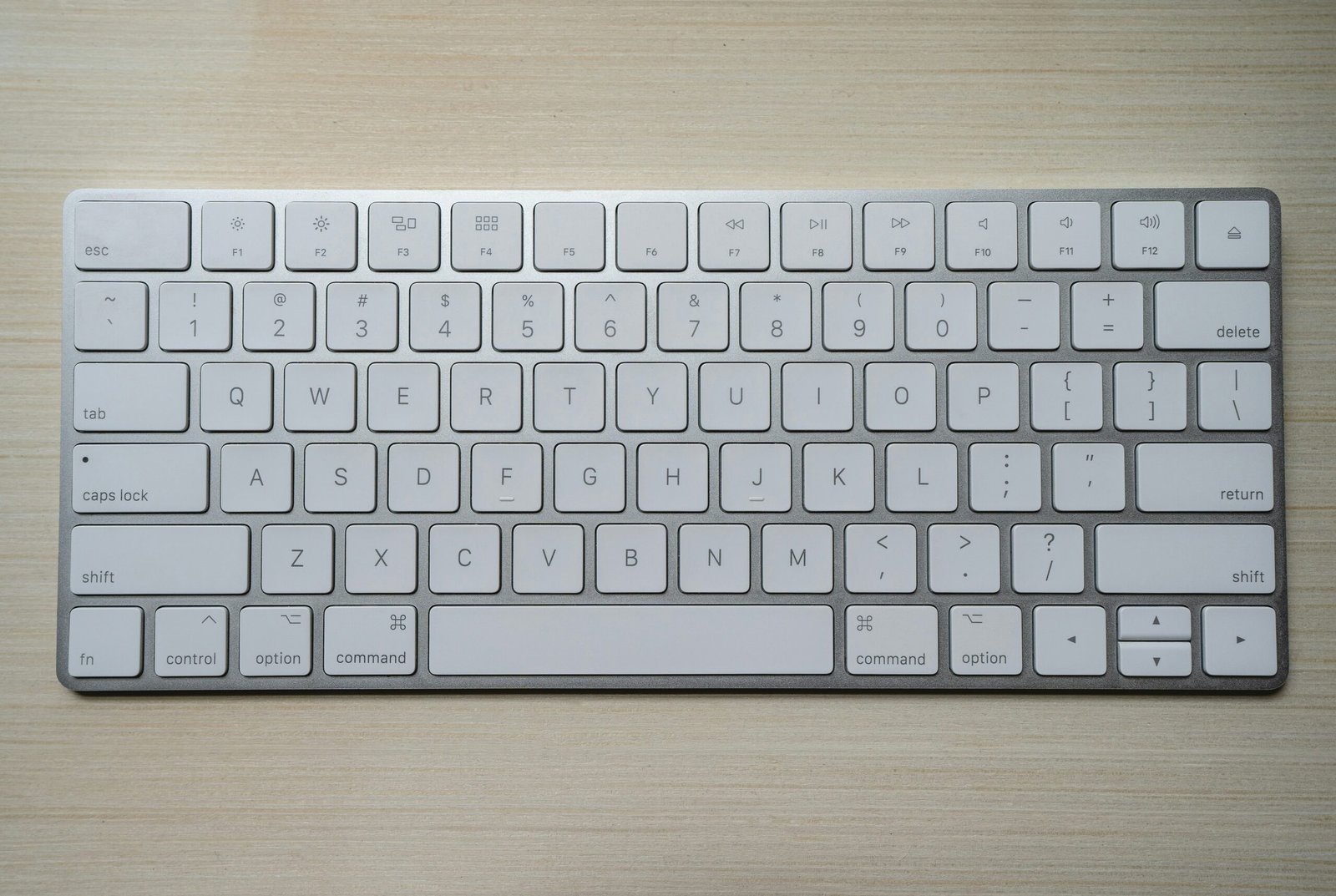
Mechanical Keyboard Switches Explained for Office Use

If you spend hours typing, a mechanical keyboard can make a real difference to comfort and accuracy. The first decision is the switch type, and it affects feel and noise more than anything else. The three main switch types Linear. Smooth keystroke with no bump or click. Where it shines: quiet, fast, and easy for long typing sessions. Where it falls short: some typists miss the feedback and make more accidental key presses. Tactile. A small bump signals when the key registers. Where it shines: good feedback without much noise, so it suits most office work. Where it falls short: the bump isn’t to everyone’s liking. Clicky. A bump plus an audible click. Where it shines: very satisfying feedback. Where it falls short: loud, and likely to be heard on video calls or by people nearby. Other features to check Size. Full-size boards include a number pad. Tenkeyless (TKL) and 75% layouts save desk space and keep your mouse closer, which helps your shoulder. 60% boards are compact but remove arrow and function keys many office users need. Hot-swappable switches. These let you change switches without soldering, so you can try other types later. Noise dampening. Foam inside the case and softer switches reduce sound. This matters if you share a room. Connection. Wired is reliable and has no battery. Wireless is neater, but check battery life and whether it supports multiple devices. Keycap material. Thicker keycaps tend to feel more solid and sound deeper. Which one should you choose? Quiet home office or shared space: linear or quiet tactile, with a 75% or TKL layout Heavy daily typing: tactile, for feedback that helps accuracy Gaming and work on one board: linear, wired or low-latency wireless Working near others or on frequent calls: avoid clicky switches Try to type on a board before buying, or choose a retailer with an easy return policy. Switch feel is personal.

Continue Reading...
Oct 22, 2026
Used before category names. Buying Guides Home Office Productivity Accessories

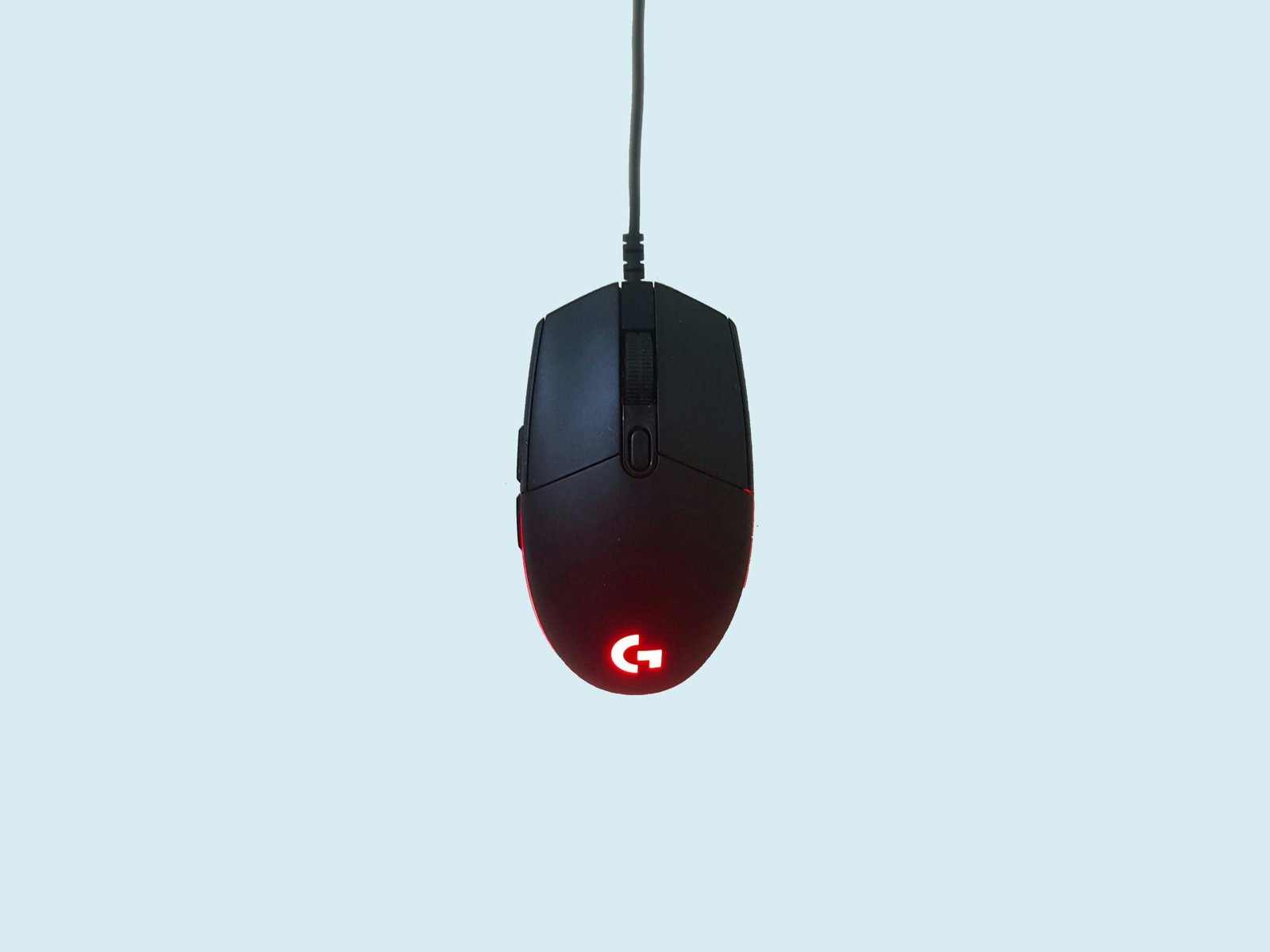
How to Choose a Mouse for Long Work Days

You use your mouse thousands of times a day, yet it often gets less thought than any other piece of gear. The right shape can make long sessions more comfortable. Common mouse types Standard mouse. Familiar and widely available. Where it shines: easy to switch between models and good for most users. Where it falls short: the flat palm-down position can feel tiring for some people over time. Vertical mouse. Holds your hand in a handshake position. Where it shines: many people find it more comfortable for the forearm. Where it falls short: it takes a few days to adjust, and precision tasks may feel different at first. Trackball. The ball moves under your thumb or fingers while the body stays still. Where it shines: needs very little desk space and little arm movement. Where it falls short: it can feel unfamiliar, and fine control takes practice. Compact or travel mouse. Small and light. Where it shines: it’s easy to carry. Where it falls short: a small body can feel cramped in larger hands. What to check before buying Habits that help Keep your wrist straight, rest your forearm lightly on the desk, and let your whole arm move instead of flicking the wrist. Take short breaks and stretch your hands. If you feel ongoing pain, numbness, or tingling, see a healthcare professional rather than relying on a new product.

Continue Reading...
Sep 22, 2026
Used before category names. Buying Guides Productivity Accessories

Webcams and Lighting for Video Calls: What Matters Most

Most people who want to look better on calls start by shopping for a webcam. In practice, lighting and camera position change the picture more than the camera does. Start with light Cameras need light to produce a clear, low-noise image. Dim rooms force the camera to boost its sensitivity, which makes the picture grainy. Face a light source. Sit facing a window or place a lamp in front of you, slightly above eye level. Never sit with a window behind you, because the camera will darken your face. Soften the light. A lamp with a diffuser, or a window with a sheer curtain, produces a more even look than a bare bulb. Keep the color consistent. Avoid mixing very warm and very cool lights in the same room. Then fix the camera position Place the camera at eye level. A laptop on a desk looks up at your chin, so raise it on a stand. Sit about an arm’s length away and keep your head and shoulders in frame. Do you need a separate webcam? Many laptop cameras are adequate in good light but struggle in dim rooms. An external webcam may help if your laptop camera is low resolution, if you use a laptop with the lid closed, or if you want to place the camera above an external monitor. For work calls, 1080p resolution is enough. Look for reliable autofocus, a privacy shutter, and compatibility with your operating system. Where an external webcam shines: better placement and often better image quality. Where it falls short: it can’t fix poor lighting, so budget for a lamp first. Don’t forget audio People forgive a mediocre picture much faster than bad sound. A headset or a dedicated microphone often matters more than the webcam.

Continue Reading...
Sep 16, 2026
Shop
Wishlist