Menu
Categories

Curated Tech for the Modern Professional.

Curated Tech for the Modern Professional.

Wishlist
Shopping Cart

No products in the cart.

Category: Buying Guides

Used before category names. Buying Guides Home Office

Home Office Essentials: What You Actually Need and What Can Wait

It is easy to overspend on a home office. Product pages promise a better setup, and a few hours of browsing can turn into a long shopping list. The result is often a desk full of gear that doesn’t fix the problems you actually have. A better approach is to sort purchases by how much they affect your daily work, your health, and your ability to stay online. This guide splits home office gear into three tiers, explains why each item sits where it does, and ends with the mistakes we see most often. Three questions to ask before buying anything Before adding an item to your list, check it against these questions. Does it stop me from working when it fails? Internet, power, and your computer fall in this group. They come first. Does it affect my body over months and years? A chair, screen height, and keyboard position fall here. Problems build slowly, so they are easy to ignore until they hurt. Does it only make things nicer? Décor, extra speakers, and accessories fall here. They are fine to buy, but they can wait. If an item answers “yes” to the first or second question, it belongs in Tier 1 or Tier 2. If it only answers “yes” to the third, it goes in Tier 3. Tier 1: Buy first These items keep you working and protect your health. A dependable computer. Everything else depends on it. For typical office work (documents, spreadsheets, video calls, and many browser tabs), prioritize these in order: a solid-state drive (SSD) instead of an older hard disk, enough memory (8 GB is a workable minimum and 16 GB gives more room), and a keyboard you find comfortable. A faster processor matters less than most advertising suggests for this kind of work. A supportive chair. You will sit in it for hours, five or six days a week. Look for adjustable seat height, a backrest that supports your lower back, and armrests that don’t force your shoulders up. If you can, sit in the chair before you buy, or choose a seller with an easy return policy. Where it shines: it protects your back and makes long days easier. Where it falls short: a good chair costs more than other items on this list, so it can take up much of your budget. A lumbar cushion on a basic chair is a reasonable stopgap. A backup internet option. A single connection is a single point of failure. A mobile hotspot, or a second SIM with a data plan, lets you finish a meeting when your main line drops. Power protection. At the minimum, use a surge-protected power strip for your computer and router. If power cuts are frequent where you live, read our guide on power backup for remote work. Tier 2: Buy next These make daily work faster and more comfortable once the basics are sorted. An external monitor. A larger screen cuts down on switching between windows and lets you raise your eye level, which helps your neck. Pick a size and resolution that suits your desk and your eyesight, and make sure your computer has the right port or you have a suitable adapter. A separate keyboard and mouse. If you use a laptop, these let you position your hands properly instead of hunching over the built-in keyboard. Our posts on mechanical keyboards and mice cover what to look for. Headphones with a decent microphone. These matter for calls and for blocking distraction. See our guide on noise-canceling headphones for what to check. A desk lamp. Good light reduces eye strain and improves how you look on camera. Choose one with adjustable brightness. Tier 3: Can wait These improve comfort and polish, but you can work well without them. Some of these become more valuable later. For example, a sit-stand desk makes sense once you know how long you sit each day, and a monitor arm helps once you know your ideal screen position. A simple buying order If you are starting from scratch and buying in stages, this order works well for most people. Computer, surge protector, and backup internet Chair or lumbar support Keyboard, mouse, and a way to raise your screen Headphones and a desk lamp External monitor Everything in Tier 3, one item at a time Mistakes to avoid Buying by specifications alone. A long spec list doesn’t tell you whether a chair is comfortable or a keyboard suits your hands. Read reviews that describe daily use, not only features. Buying everything at once. If you buy the whole setup in one go, you can’t tell which items helped. Buy in stages and use each for a week or two. Ignoring the return policy. Chairs, keyboards, and mice are personal. Check the return terms before you pay. Forgetting your space. A large monitor or a deep desk may not fit your room. Measure first. Skipping the free fixes. Raising your screen with books, adjusting your chair, and improving the lighting cost nothing. Our ergonomic setup guide lists them in priority order. Our recommendation Spend first on what keeps you working and protects your body, then on what makes work more comfortable, and last on what looks good. Where this approach shines: you avoid waste and learn what you actually miss. Where it falls short: your setup will be imperfect for a few weeks or months, so pair it with the free ergonomic fixes while you build it up.


Continue Reading...
Oct 22, 2026
Used before category names. Buying Guides

Laptop Stand, Monitor Arm, or External Monitor: Which Should You Get?

A screen that is too low is one of the most common causes of neck strain among laptop users. Three products solve it in different ways. Laptop stand A stand lifts your laptop so the screen sits closer to eye level. You then need a separate keyboard and mouse. Where it shines: low cost, portable models exist, and it works with any laptop. Where it falls short: you still use a small screen, and an external keyboard and mouse become a necessity. External monitor A monitor gives you more screen space and lets you place your laptop to one side or close it. Where it shines: more space for multitasking, and a better viewing angle. Where it falls short: it takes up desk space, needs a compatible port or a USB-C hub, and a monitor sitting on its own stand may still be too low. Monitor arm An arm clamps to your desk and lets you adjust height, distance, and tilt freely. Where it shines: precise positioning and a clear desk surface. Where it falls short: your desk must support a clamp, and you need to check that the arm is rated for your monitor’s weight and has the right mounting pattern. Which one fits you? Your situation Best starting point Laptop only, small budget Laptop stand plus keyboard and mouse Work at a desk most days External monitor, raised on a stand or books Limited desk space or shared screen Monitor arm Frequent travel Foldable laptop stand A quick check Whichever option you choose, the top of the screen should sit at or slightly below eye level, about an arm’s length from your face.

Continue Reading...
Oct 2, 2026
Used before category names. Buying Guides Home Office Productivity Accessories

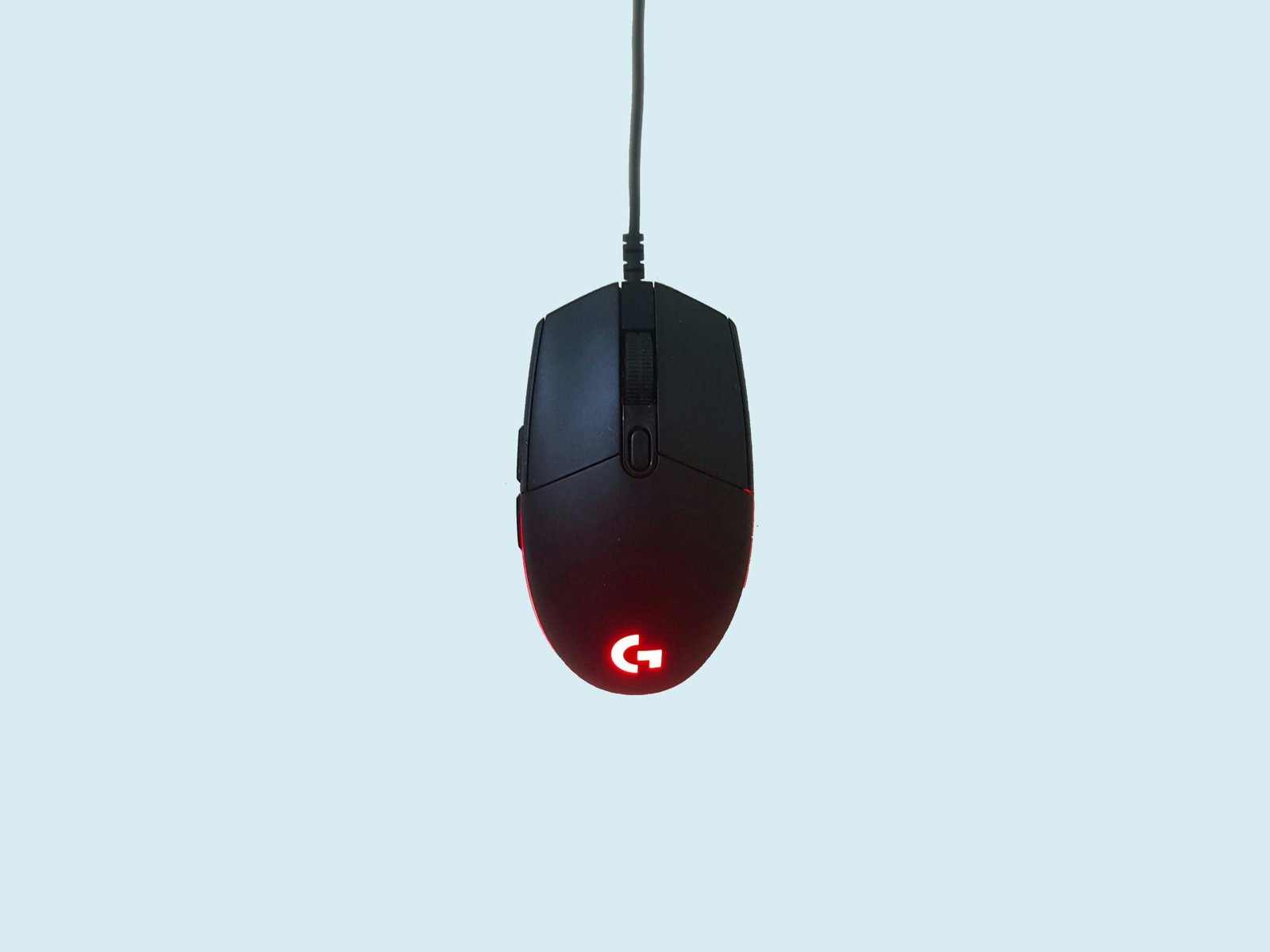
How to Choose a Mouse for Long Work Days

You use your mouse thousands of times a day, yet it often gets less thought than any other piece of gear. The right shape can make long sessions more comfortable. Common mouse types Standard mouse. Familiar and widely available. Where it shines: easy to switch between models and good for most users. Where it falls short: the flat palm-down position can feel tiring for some people over time. Vertical mouse. Holds your hand in a handshake position. Where it shines: many people find it more comfortable for the forearm. Where it falls short: it takes a few days to adjust, and precision tasks may feel different at first. Trackball. The ball moves under your thumb or fingers while the body stays still. Where it shines: needs very little desk space and little arm movement. Where it falls short: it can feel unfamiliar, and fine control takes practice. Compact or travel mouse. Small and light. Where it shines: it’s easy to carry. Where it falls short: a small body can feel cramped in larger hands. What to check before buying Habits that help Keep your wrist straight, rest your forearm lightly on the desk, and let your whole arm move instead of flicking the wrist. Take short breaks and stretch your hands. If you feel ongoing pain, numbness, or tingling, see a healthcare professional rather than relying on a new product.

Continue Reading...
Sep 22, 2026
Used before category names. Buying Guides Productivity Accessories

Webcams and Lighting for Video Calls: What Matters Most

Most people who want to look better on calls start by shopping for a webcam. In practice, lighting and camera position change the picture more than the camera does. Start with light Cameras need light to produce a clear, low-noise image. Dim rooms force the camera to boost its sensitivity, which makes the picture grainy. Face a light source. Sit facing a window or place a lamp in front of you, slightly above eye level. Never sit with a window behind you, because the camera will darken your face. Soften the light. A lamp with a diffuser, or a window with a sheer curtain, produces a more even look than a bare bulb. Keep the color consistent. Avoid mixing very warm and very cool lights in the same room. Then fix the camera position Place the camera at eye level. A laptop on a desk looks up at your chin, so raise it on a stand. Sit about an arm’s length away and keep your head and shoulders in frame. Do you need a separate webcam? Many laptop cameras are adequate in good light but struggle in dim rooms. An external webcam may help if your laptop camera is low resolution, if you use a laptop with the lid closed, or if you want to place the camera above an external monitor. For work calls, 1080p resolution is enough. Look for reliable autofocus, a privacy shutter, and compatibility with your operating system. Where an external webcam shines: better placement and often better image quality. Where it falls short: it can’t fix poor lighting, so budget for a lamp first. Don’t forget audio People forgive a mediocre picture much faster than bad sound. A headset or a dedicated microphone often matters more than the webcam.

Continue Reading...
Sep 16, 2026
Shop
Wishlist