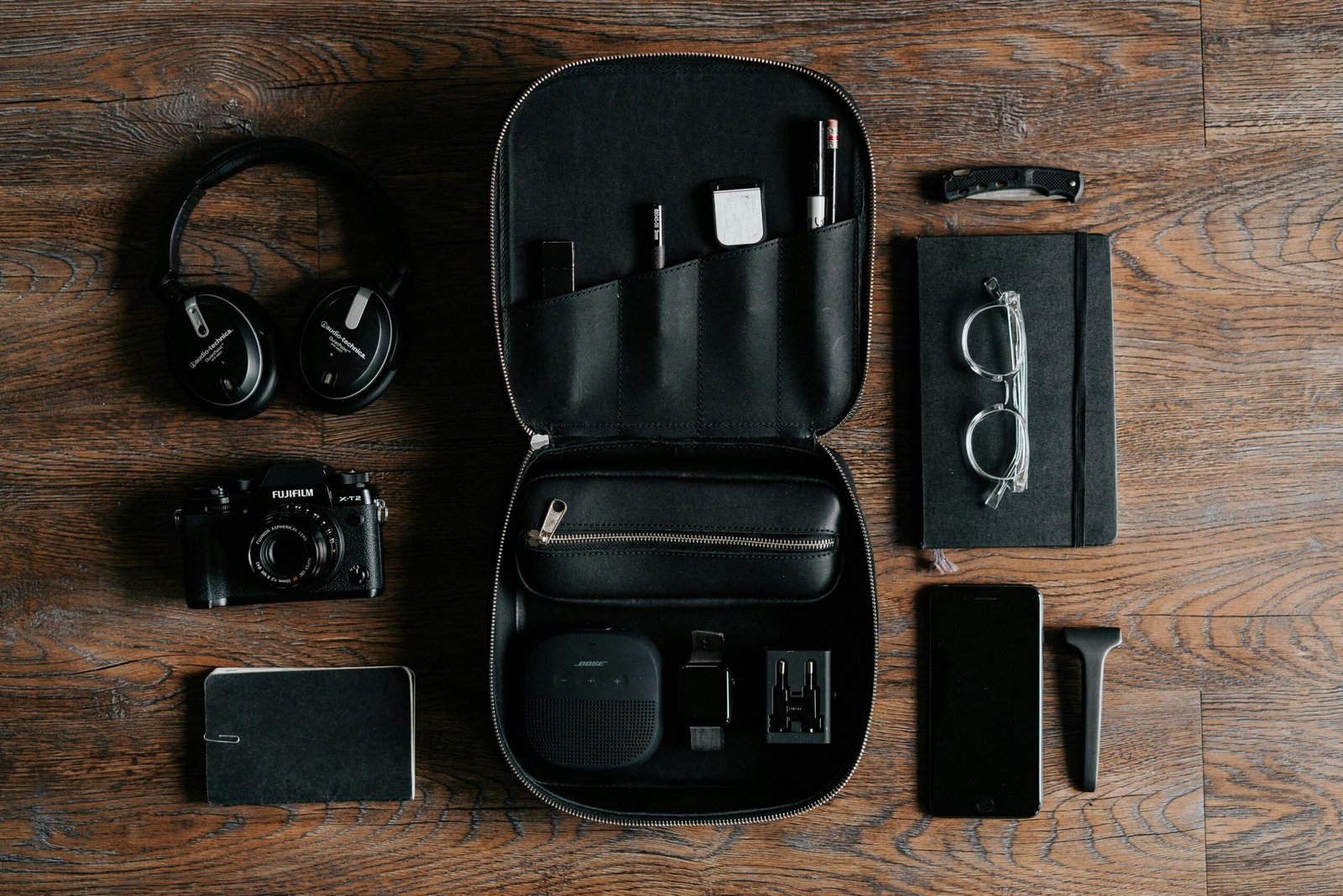
Working while you travel goes better with a small, well-chosen kit than with a bag full of loose cables. The aim is simple: carry enough to work for a full day away from your desk, charge everything you own, and keep the weight down. This guide shows how to build that kit, what to look for in each item, and a checklist to run through before you leave. Start with two rules Rule 1: Standardize your charging. If your laptop, phone, headphones, and power bank all charge over USB-C, you can carry one charger and a couple of cables instead of five different ones. Before a trip, replace any device that uses an odd connector, or pack its cable separately. Rule 2: Pack for failure. Cables fray, chargers get left in hotel rooms, and batteries run flat. Carry one spare of the item that would stop you from working if it failed. For most people that is a USB-C cable. The core kit A compact multi-port charger. A single charger with a USB-C port, and ideally a second port for your phone, can replace several bricks. The key check is wattage. Look at the label on your laptop’s current charger, which shows its output in watts, and choose a travel charger that matches or exceeds it. A weaker charger may charge slowly, or not at all while you are working. Chargers that use gallium nitride (GaN) technology are often smaller than older designs at the same wattage, which helps when space is tight. A power bank. Choose one that supports USB-C power delivery if you want to charge a laptop from it, not just a phone. Check the maximum output in watts, because a power bank that gives 18 W will not keep a laptop that needs 65 W alive. Capacity is listed in mAh or Wh. Larger units give more charge but weigh more, so pick the smallest one that covers your needs. Two good cables. One short USB-C cable and one longer cable cover most situations. Use cables rated for the power and data speed you need, and label them if several look alike. A plug adapter. Check the socket type used in each country you will visit. Many adapters change only the plug shape and do not convert voltage. Look at the small print on your charger: if it says “Input: 100–240V”, it accepts the voltage used in most countries and only needs an adapter. If it lists a single voltage, you may need a converter, so check before you plug in. Compact headphones. Earbuds or foldable over-ear headphones with noise cancellation make airports, trains, and cafés easier to work in. Carry a short audio or charging cable for them as well. A small mouse. A travel mouse is far more comfortable than a trackpad for long sessions, and it weighs very little. A pouch or organizer. A small zip pouch keeps cables and chargers in one place and makes it easy to check that you have everything. Optional extras Understanding airline rules for batteries Spare lithium batteries, including power banks, are generally required to travel in carry-on luggage, not in checked bags. Airlines also limit capacity: a common limit is 100 Wh per battery without special approval. Power banks are often labeled in mAh, so a rough conversion helps. For a typical power bank with 3.7 V cells, 100 Wh is about 27,000 mAh. Rules differ between airlines and countries, so check yours before you fly. Working safely on public networks Airport and café Wi-Fi is convenient but less private than your home network. A few habits reduce the risk. Before you leave: a short checklist Item Check Laptop and phone Fully charged, software updated Charger Wattage matches your laptop Power bank Charged, in carry-on, within airline limit Cables Two USB-C cables, plus any special ones Plug adapter Matches destination sockets Files Key documents available offline Backup Recent copy saved to cloud or a drive Headphones Charged, cable packed Our recommendation Keep the kit small and standardized. A good charger, a USB-C power bank, two cables, an adapter, and headphones will cover most trips. Where a minimal kit shines: it is light, quick to pack, and easy to check. Where it falls short: if you forget one cable or adapter you may have no fallback, so keep a written checklist and run through it before every trip.